ScumDumpster admin tools
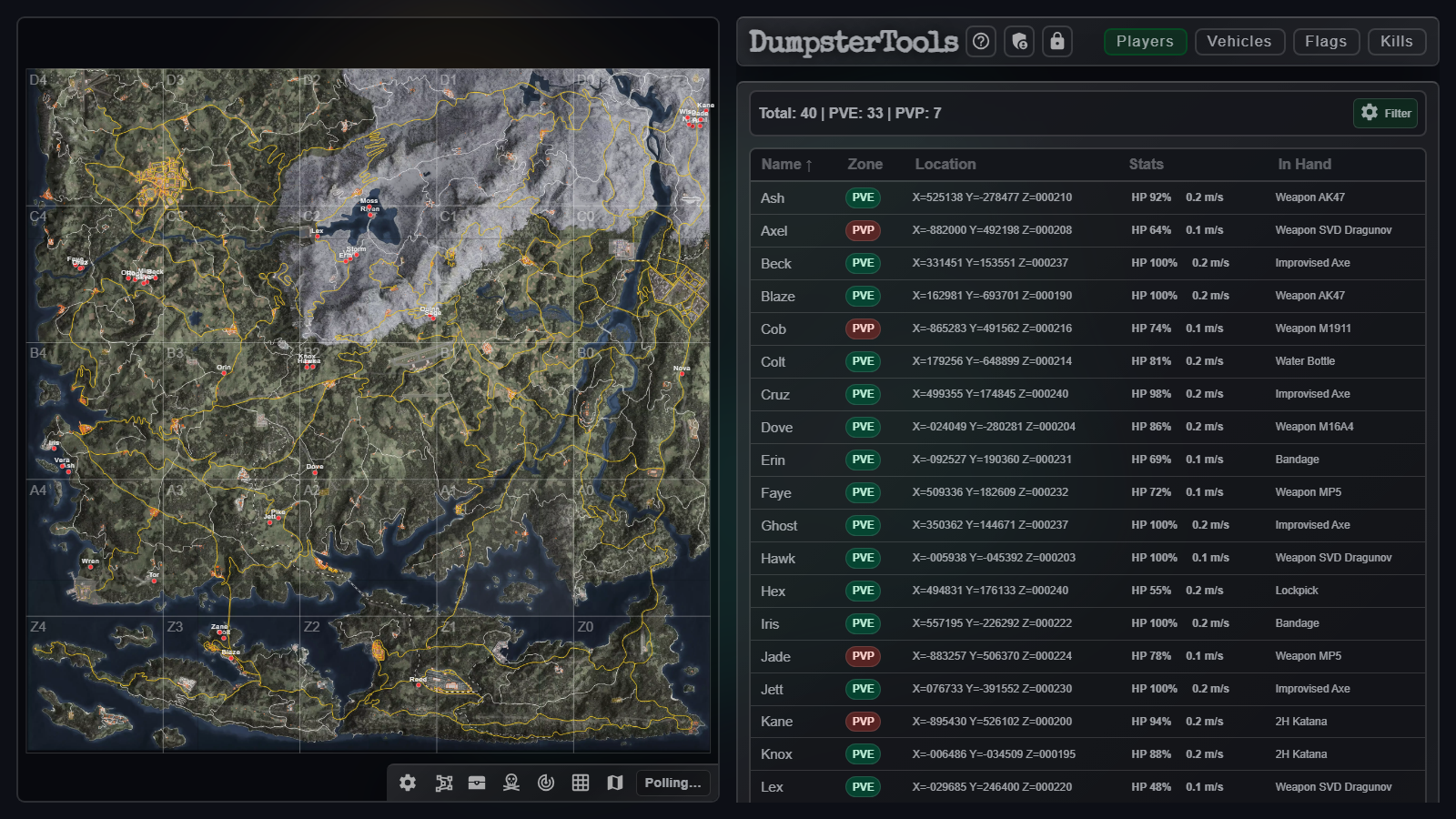
See the Dumpster all at One Glance
- Players and vehicles, updating live
- Draw, measure, and arm watch zones on the map
- Message, teleport and spawn without leaving the map
- Rule violations flagged, so you can act on them right away
What you get
- Watch the island livePlayers, vehicles, flags and kills move on the map as the server updates.
- Act without tool-hoppingMessage, spawn, teleport or run a command without leaving the Live Map.
- Catch rule breaks earlyVehicle limits, the one-flag rule and inactive windows surface before you act.
- Manage config filesEconomy, raids, notifications and loot — every save starts with a timestamped backup.
Live Map
Follow the whole island live
Follow players, vehicles, flags and recent kills on one live island map. Start with the big picture, then focus a sector or open a marker when something needs attention.
- Know what you are looking at Distinct colours separate players, vehicle classes, flags and kill roles before you open a record.
- Move from island to sector Select a grid square to focus it, move into a neighbouring sector, or return to the full island with a double-click.
- Stay live without losing control The countdown shows when fresh data arrives, and pause keeps the map still while you investigate.
- Sketch and measure Arrows, shapes, notes and distance lines stay on the map until you undo or clear them.
- Players
- Vehicles
- Flags
- Kills
- Selected
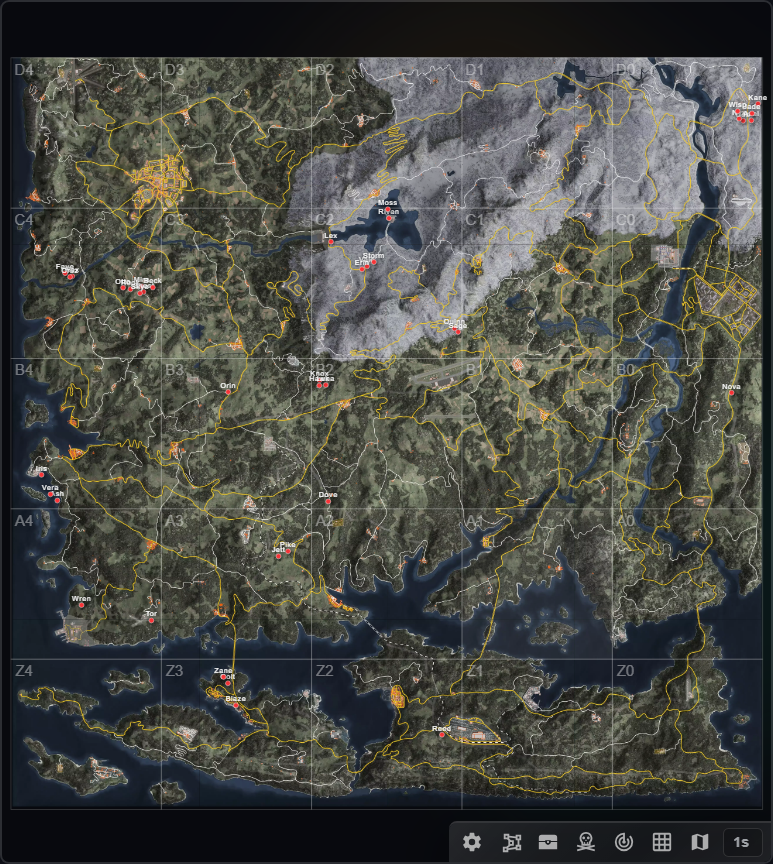
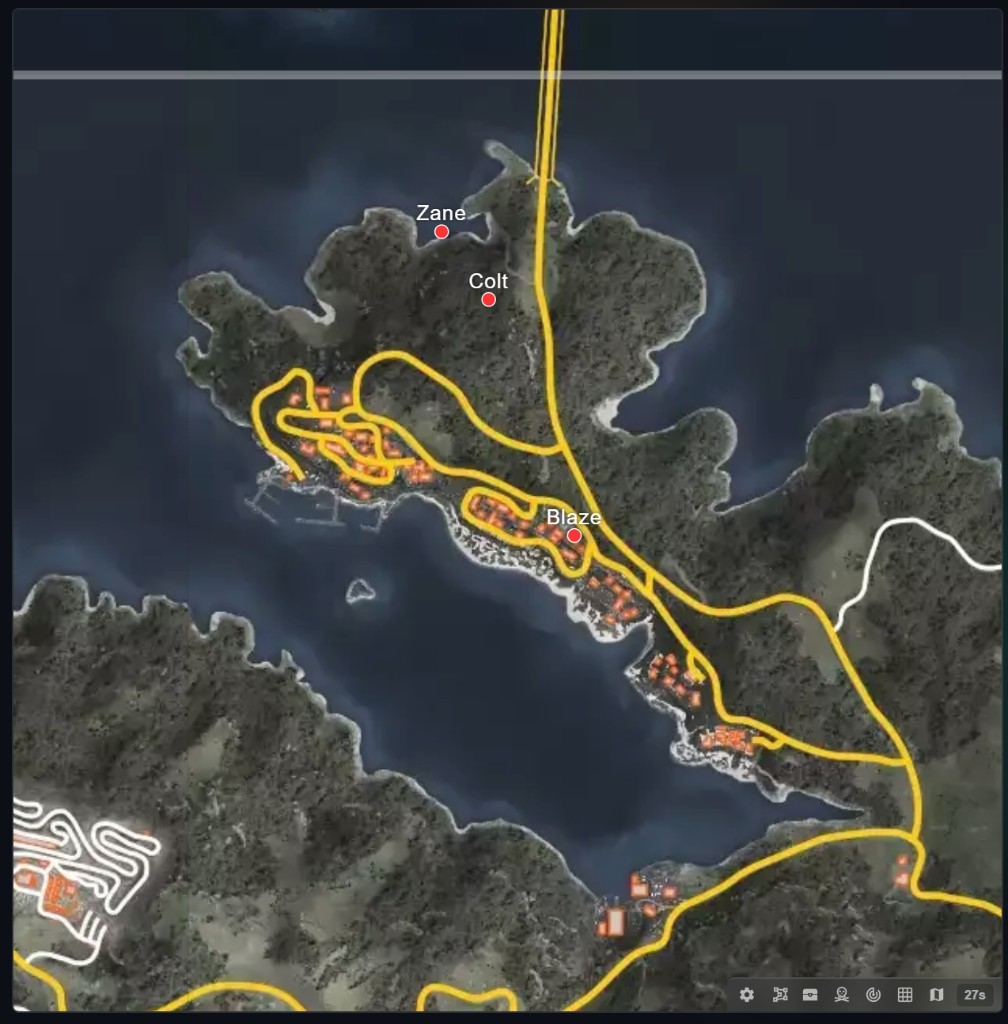
Zoom to a sectorFill the view with one grid square, then zoom and pan for a closer read. 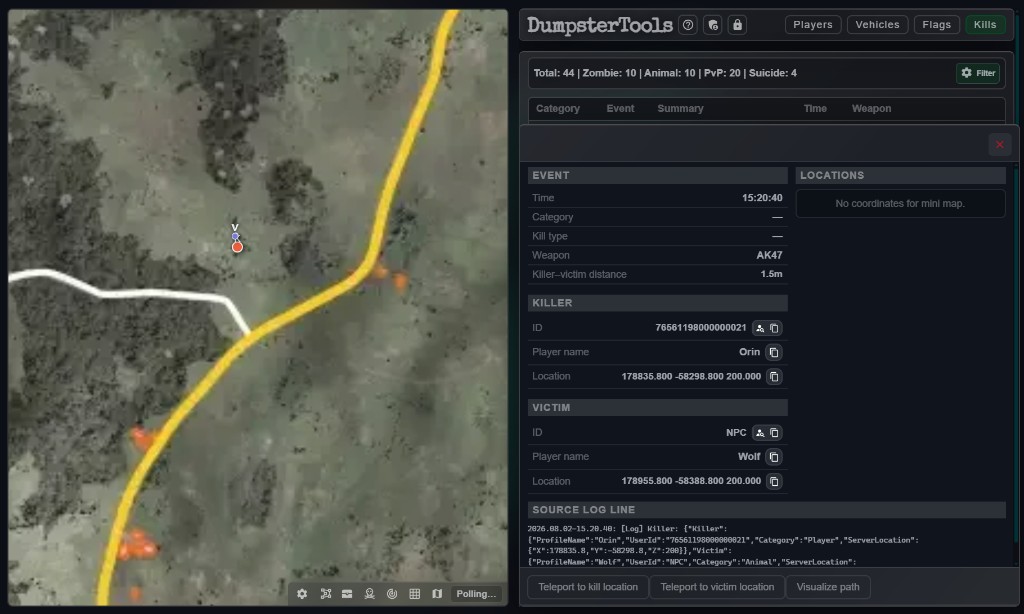
Kill markersSelect a kill marker to inspect the event, killer, victim, weapon and locations.
Search, sort & filter
Find the right info in seconds
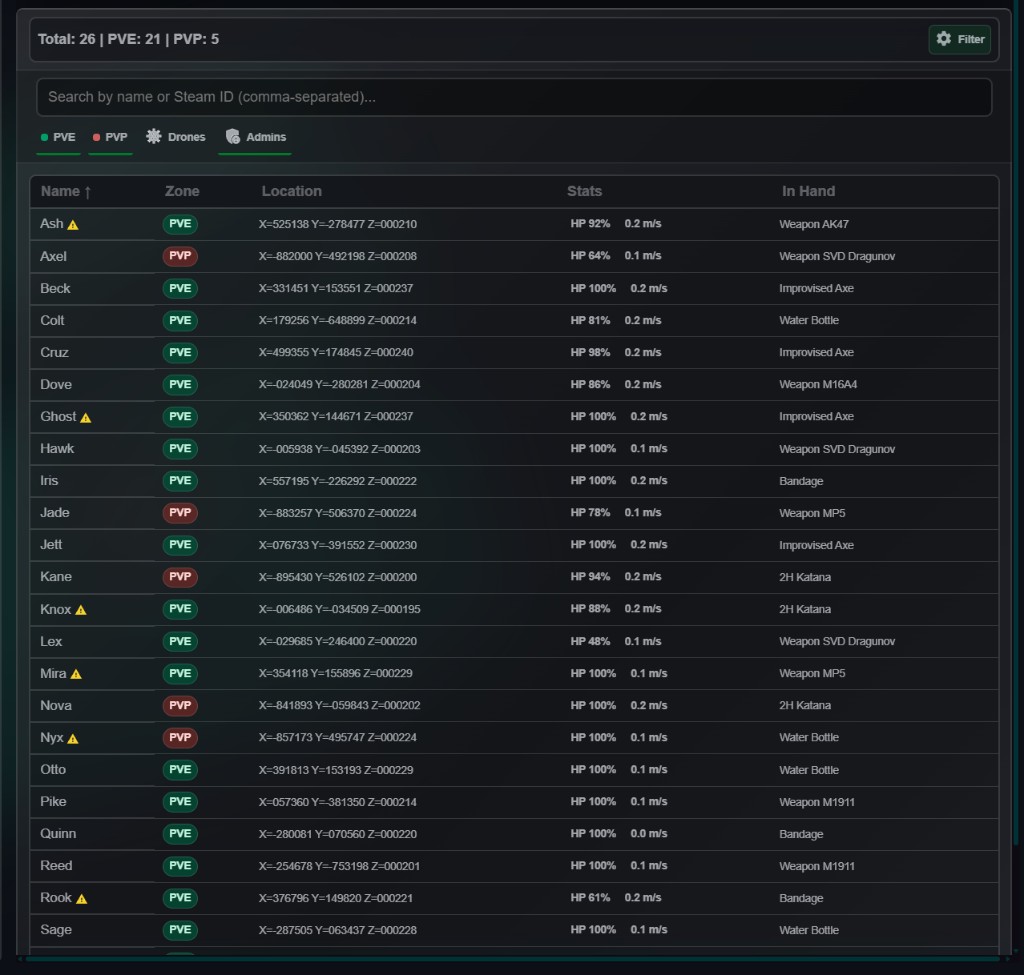
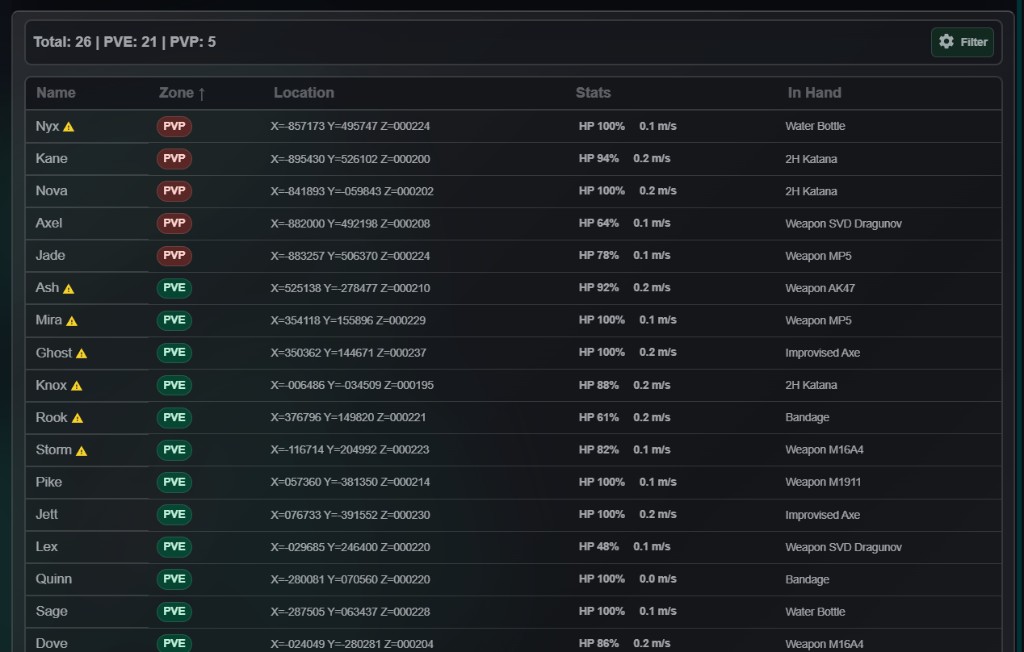
Search dedicated live lists for Players, Vehicles, Flags and Kills. Filter or sort the results, then jump straight to the matching map marker.
- Filters per tab Zone and role for players. Lock and registration for vehicles. Kill type for the feed — chips that match the list you are on.
- Honest totals The summary bar recounts as you filter, so the number always matches the rows you see.
- Row opens the map Click a row and the marker highlights, the list scrolls to it, and details open ready to act.

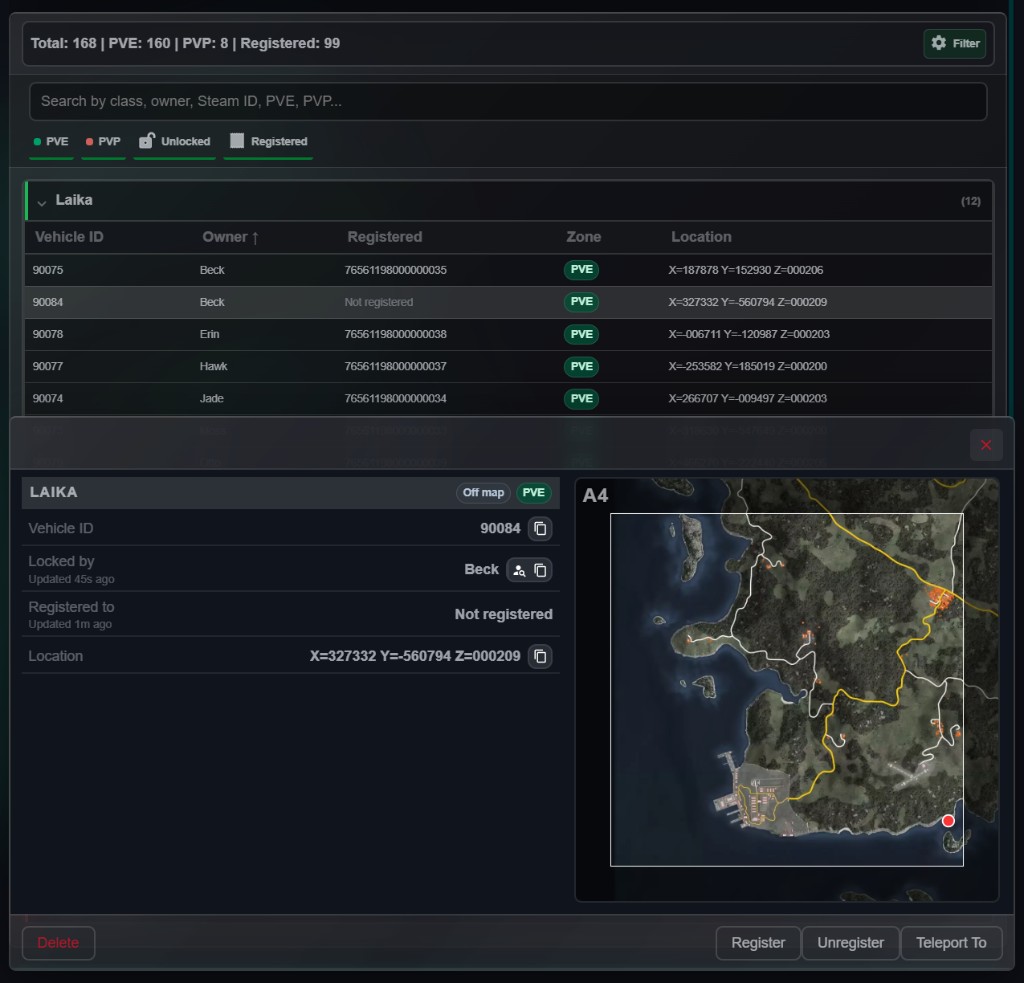
VehiclesGrouped by class with owner, registration and location on every row. 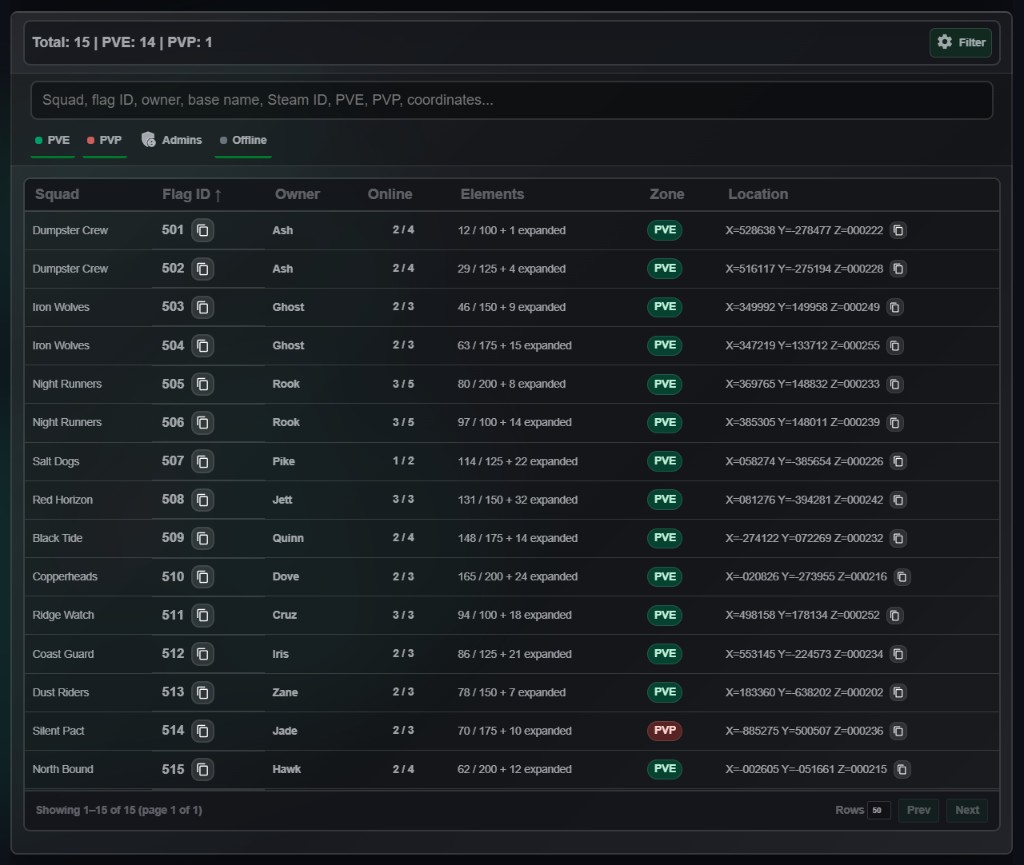
FlagsSquad, owner, elements and online count for every base flag. 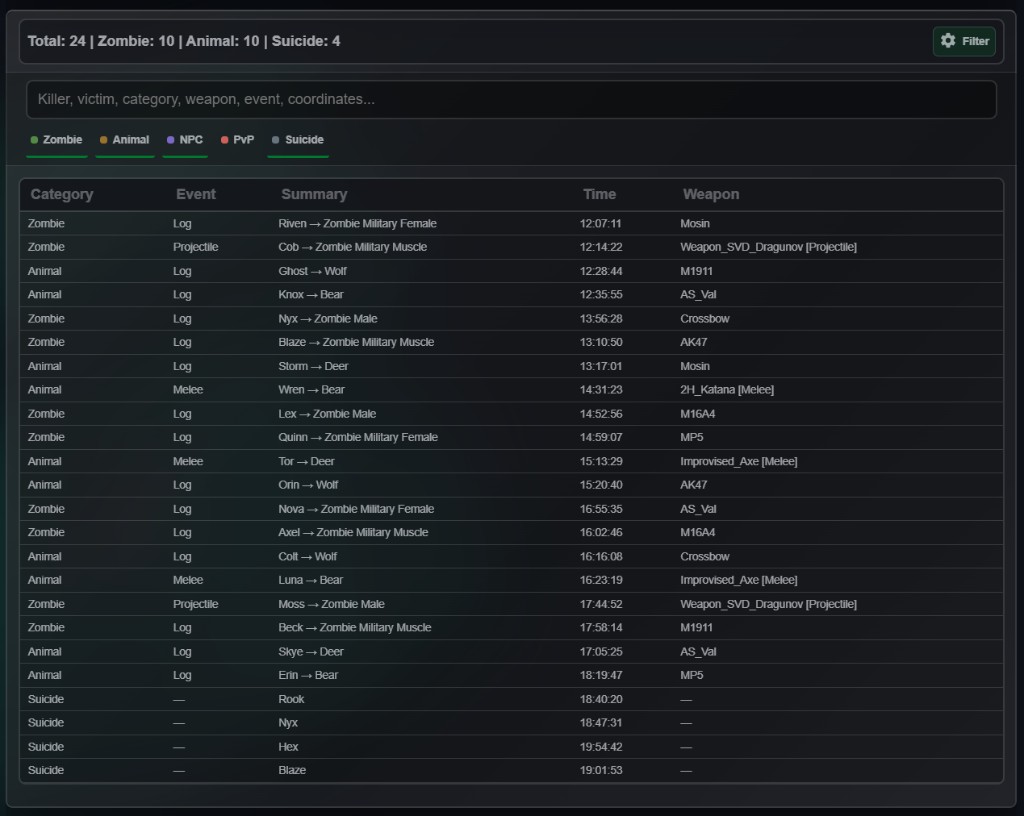
KillsRecent kill feed with weapon and time — ready to sort and filter.
Player details
Decide with the full picture
Open a player and see vitals, identity, connection and economy beside squad standing, a day of logs and shared notes — before you kick, ban or teleport.
- Squad rules checked Vehicle points, the one-flag rule and the fourteen-day inactive window flag themselves.
- Lock vs registration When the in-game lock and WhalleyBot registration disagree, the record shows it.
- Notes across shifts Leave context for the next admin — no re-investigating the same story.
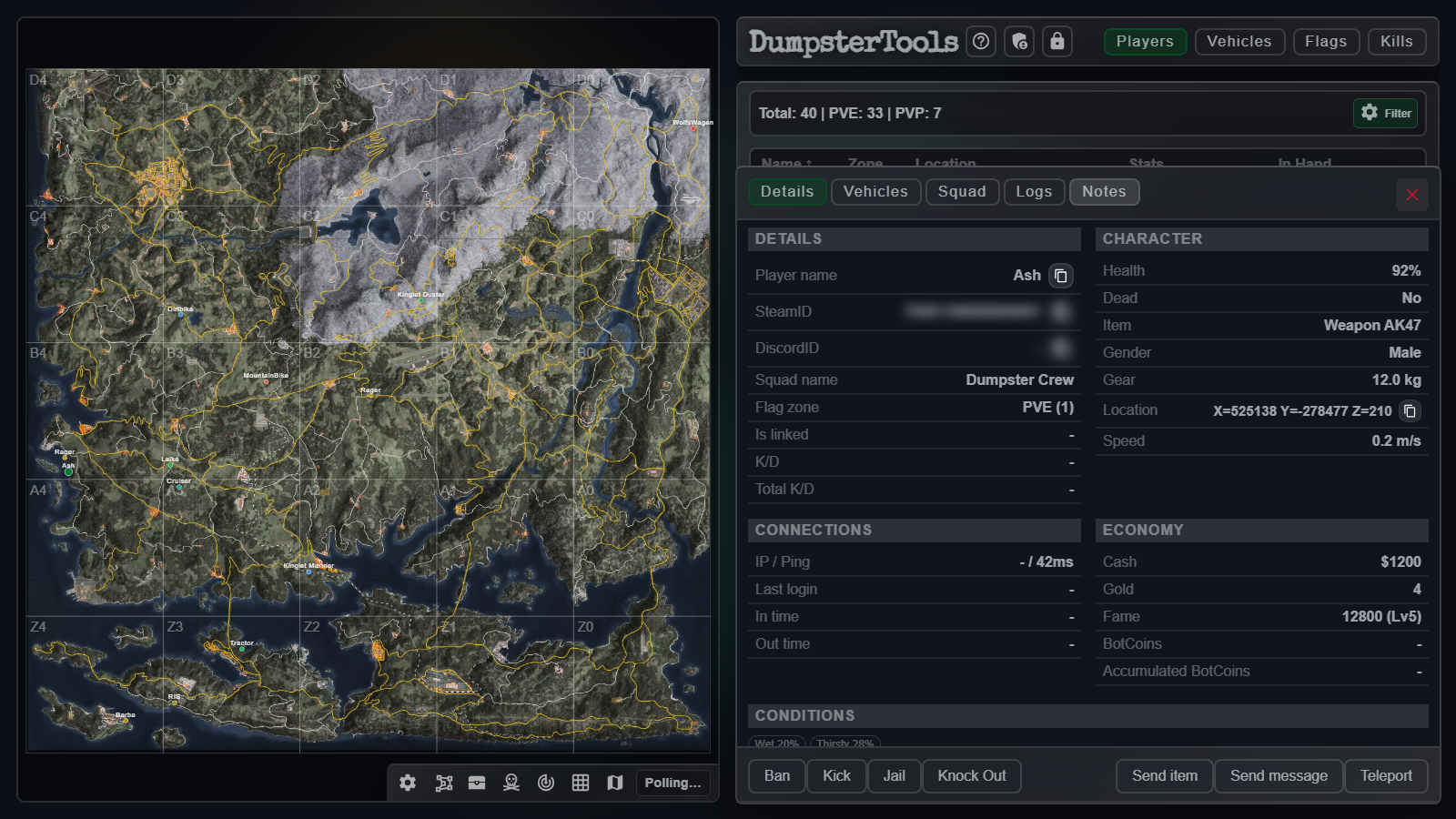

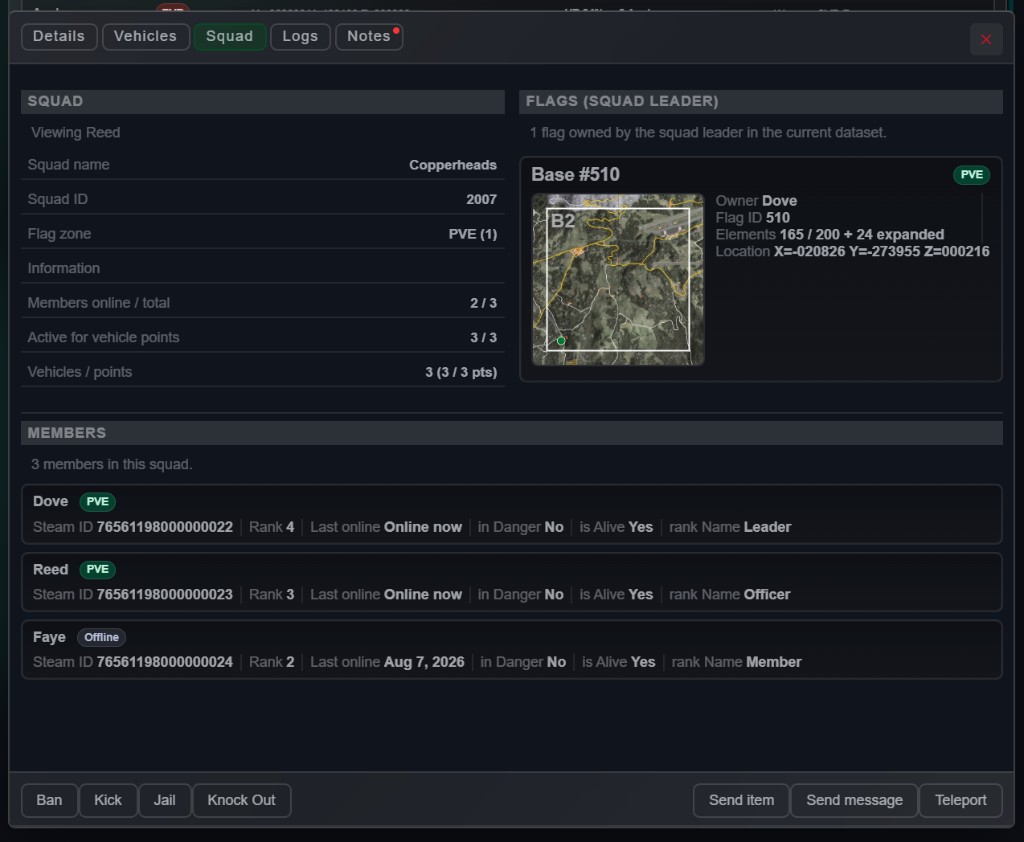
Squad tabMembers, flags and vehicle points — online counts and status at a glance. 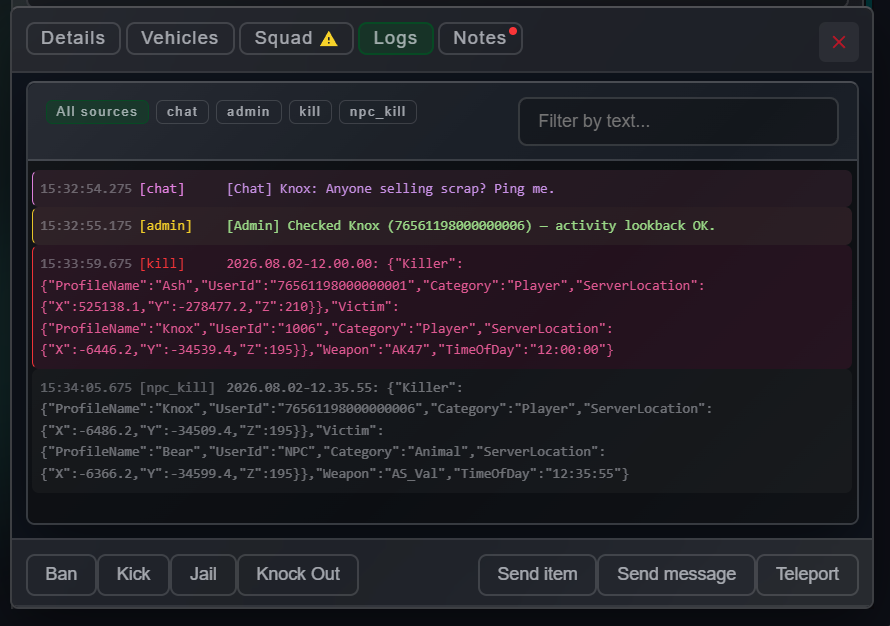
Logs tabTwenty-four hours of server logs, filterable by source. 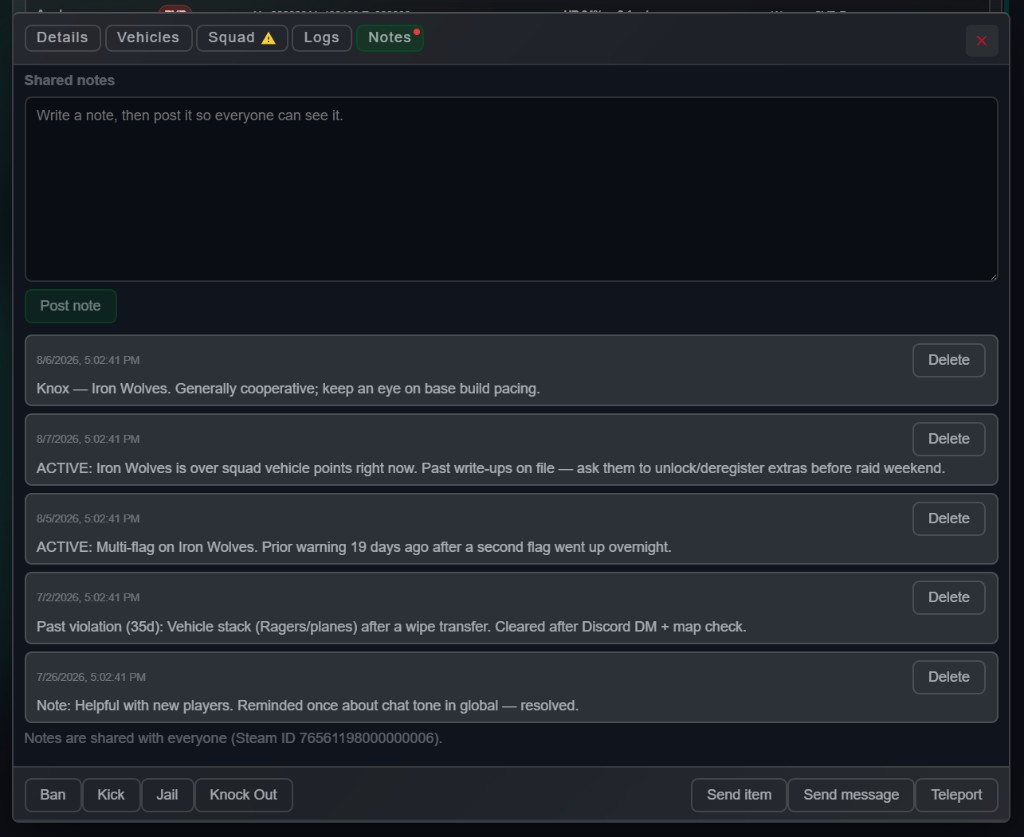
Notes tabShared admin notes on the record. Drafts stay local until you post. 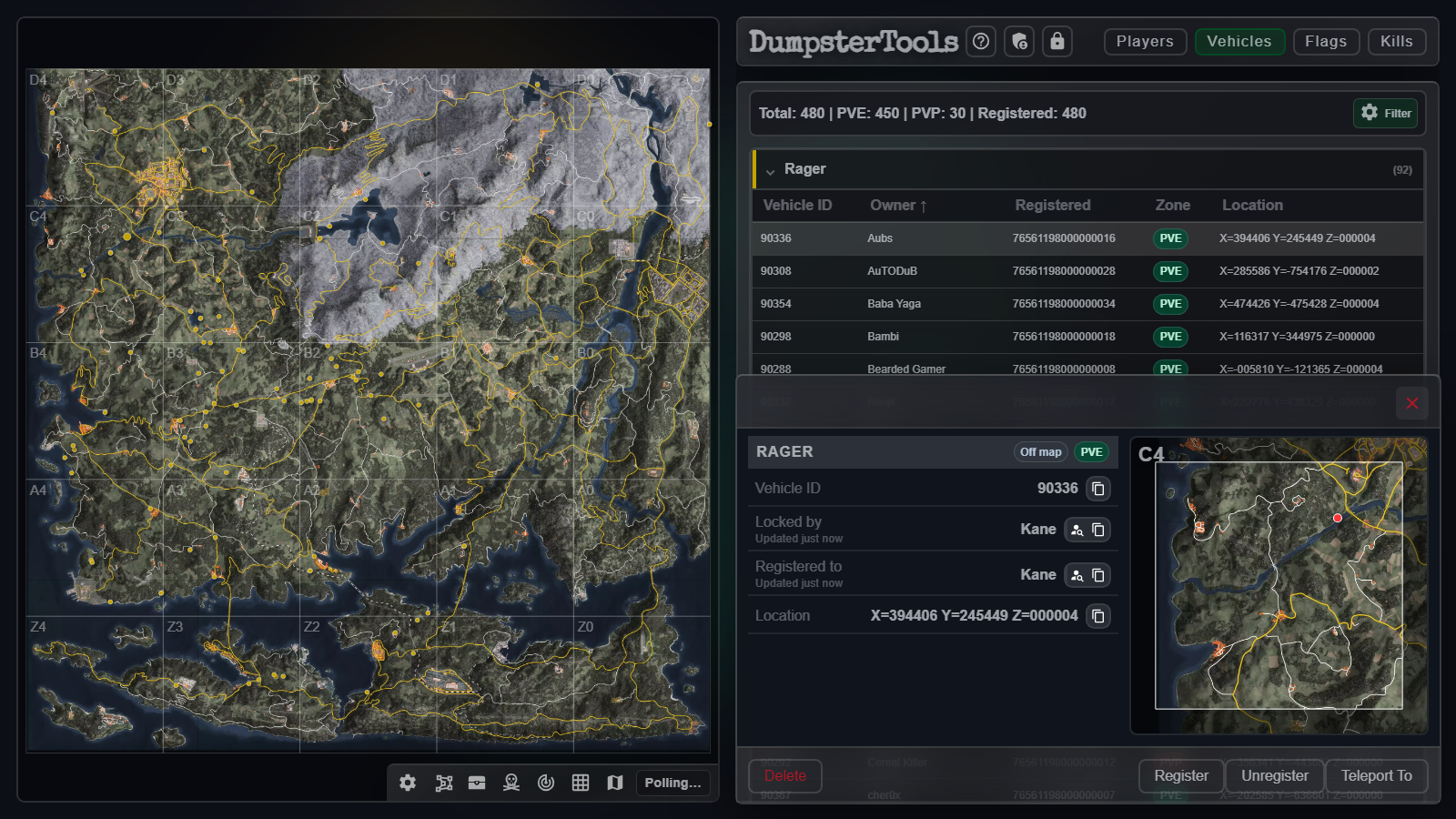
Vehicle detailMini-map with Delete, Register, Unregister and Teleport To. 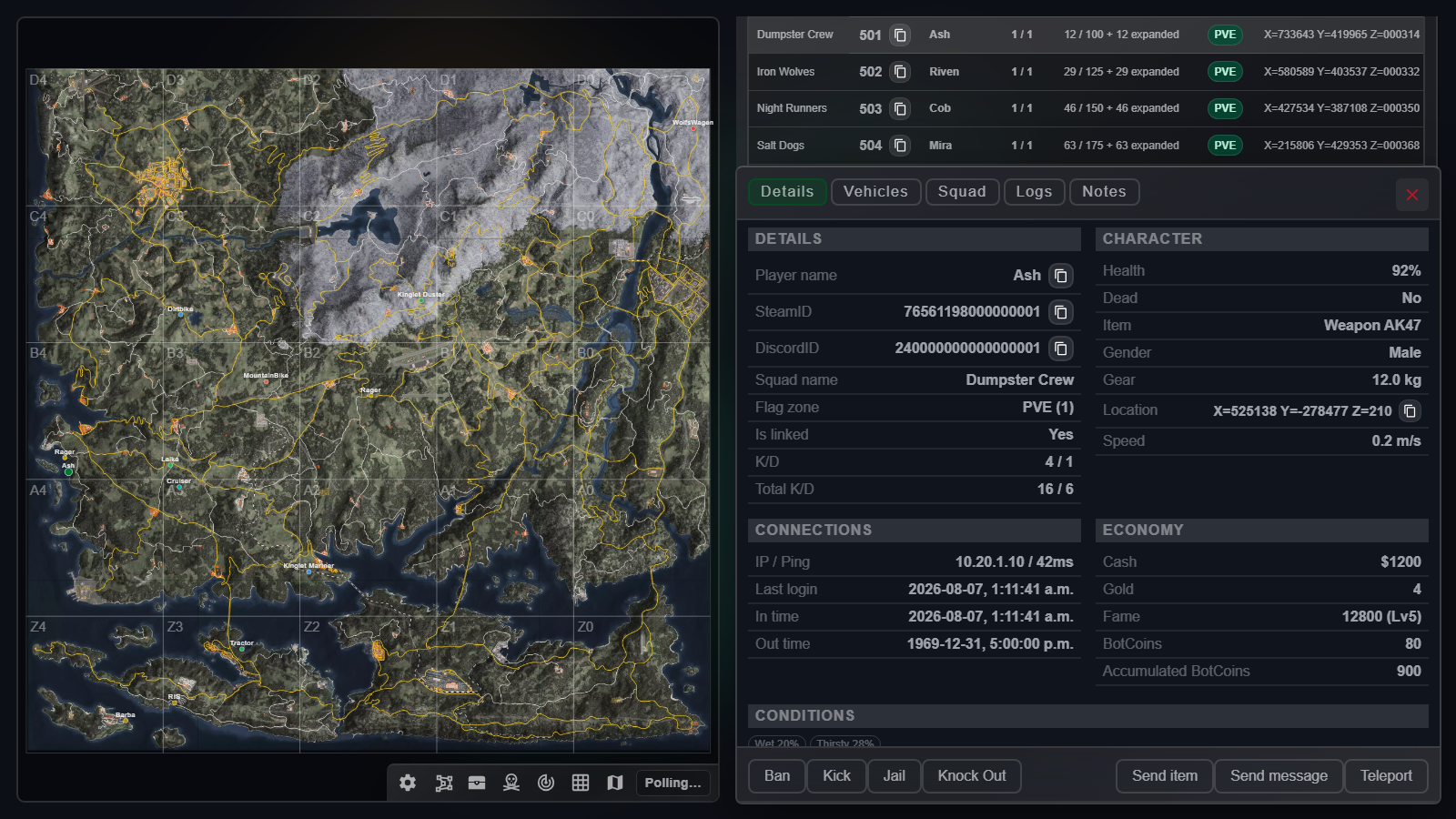
Flag to ownerOpen the owner from a flag row with their base highlighted.
Admin Actions
Run admin commands from one dialog
Message, spawn, teleport, run events, edit stats, look up IDs, search log files, send commands or open reports — with the player you selected already filled in.
- Four message channels In-game chat, screen announcement, kill-feed or Discord DM from the same box.
- Drop on the map Use map for teleports and popup events so you place players and hordes where you can see them.
- Exact server reply Expand any result to read the exact response the server returned.
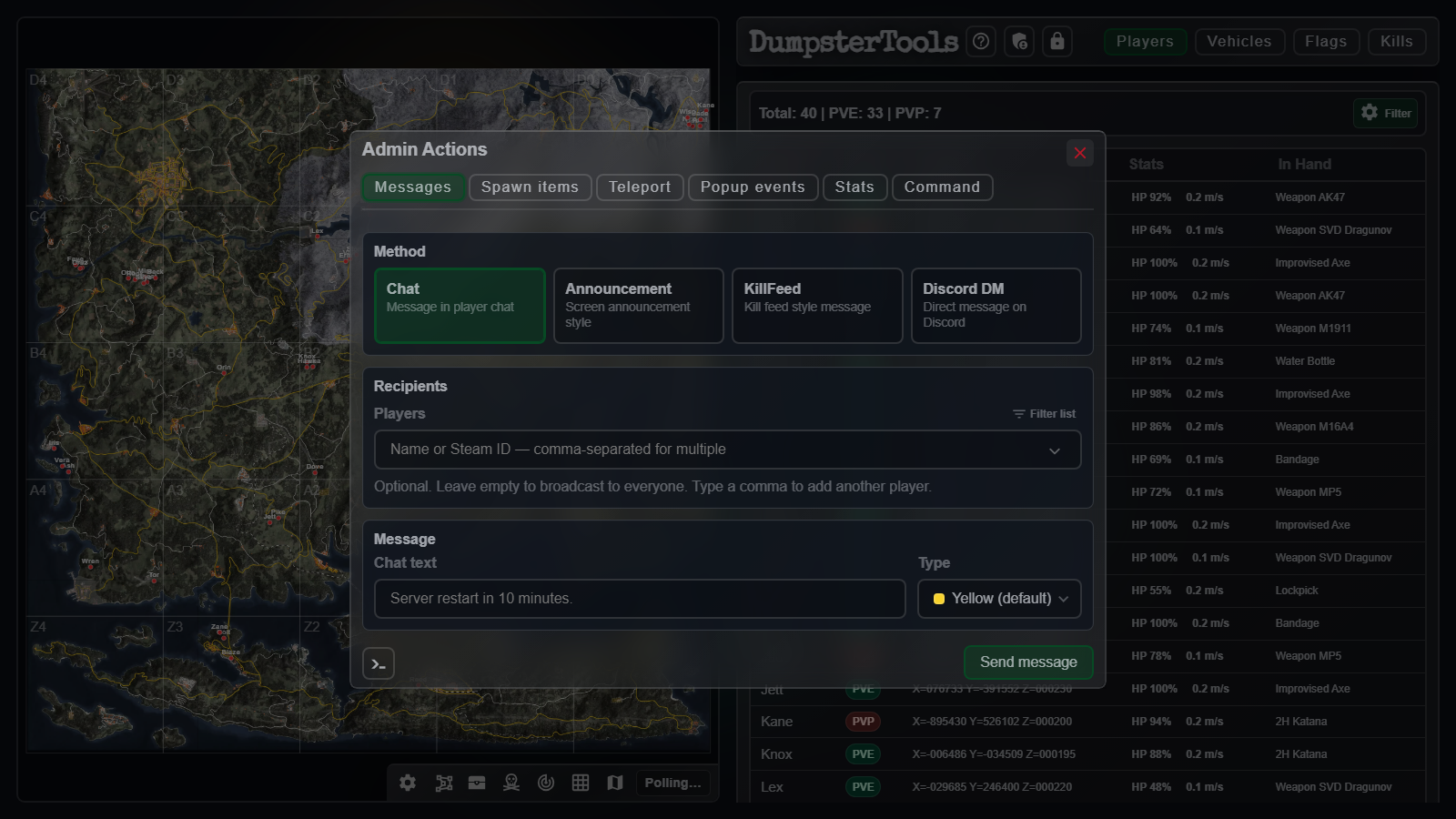

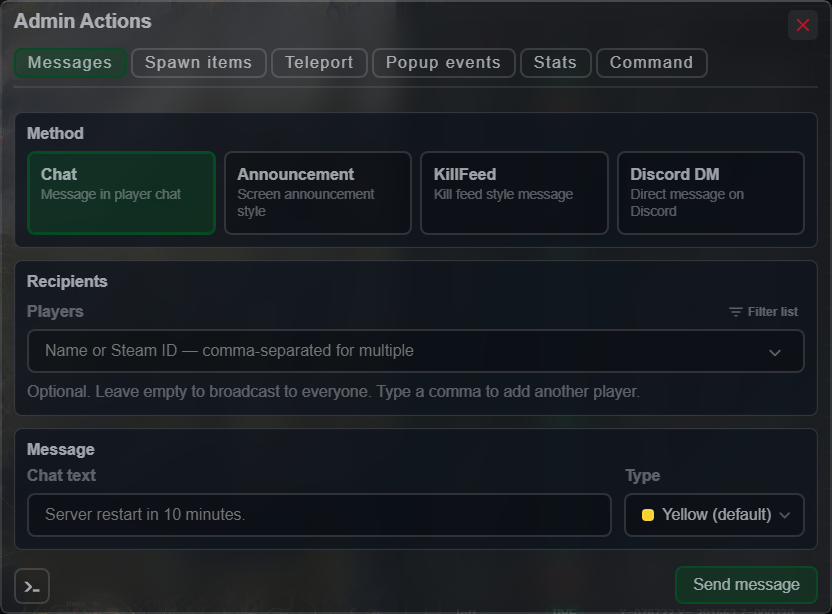
MessagesChat, announcement, kill-feed or Discord DM — still on the map. 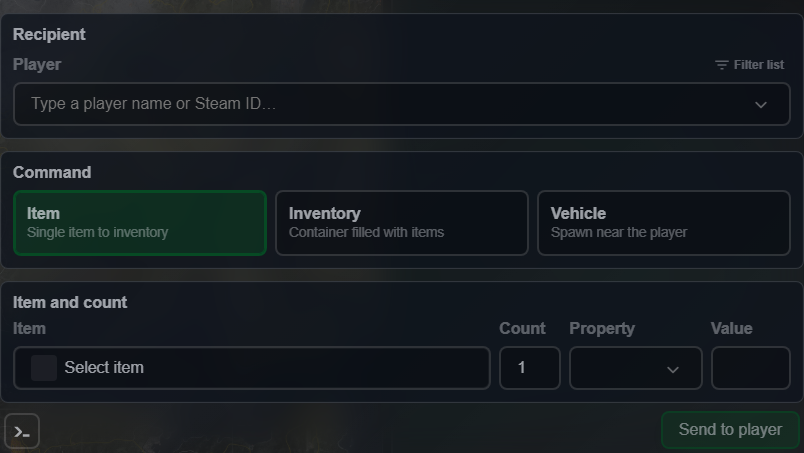
Spawn itemsItems, inventories or vehicles with armour, storage and lock options. 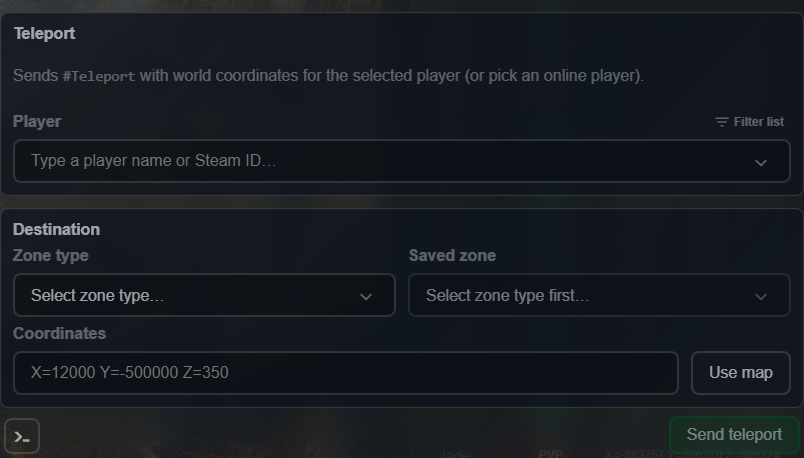
TeleportSaved zones, raw coordinates, or Use map to pick visually. 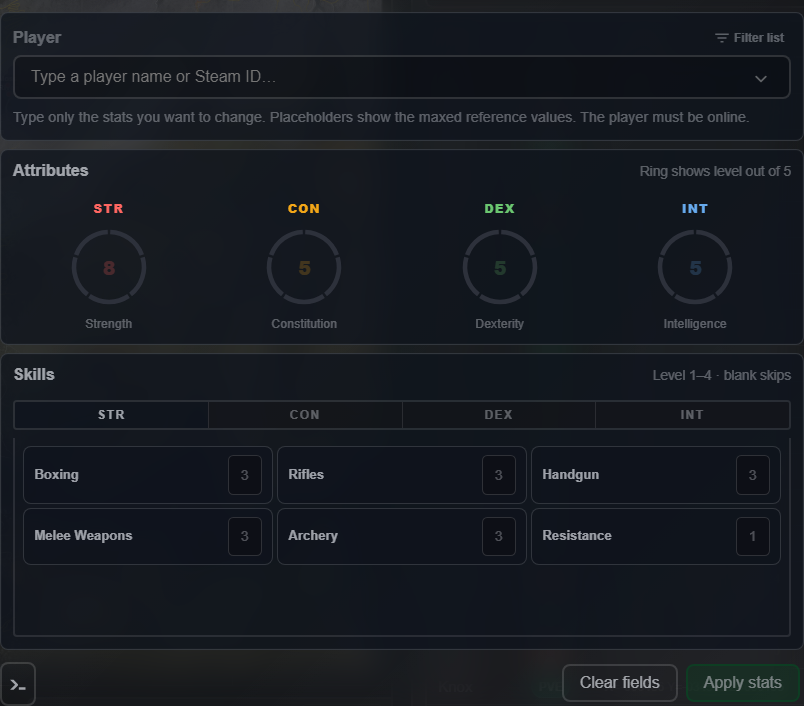
StatsEdit attributes and skills with live ring previews as you adjust. 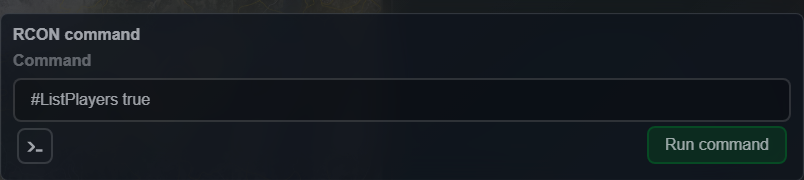
CommandRaw server commands when no dedicated tab covers the job. 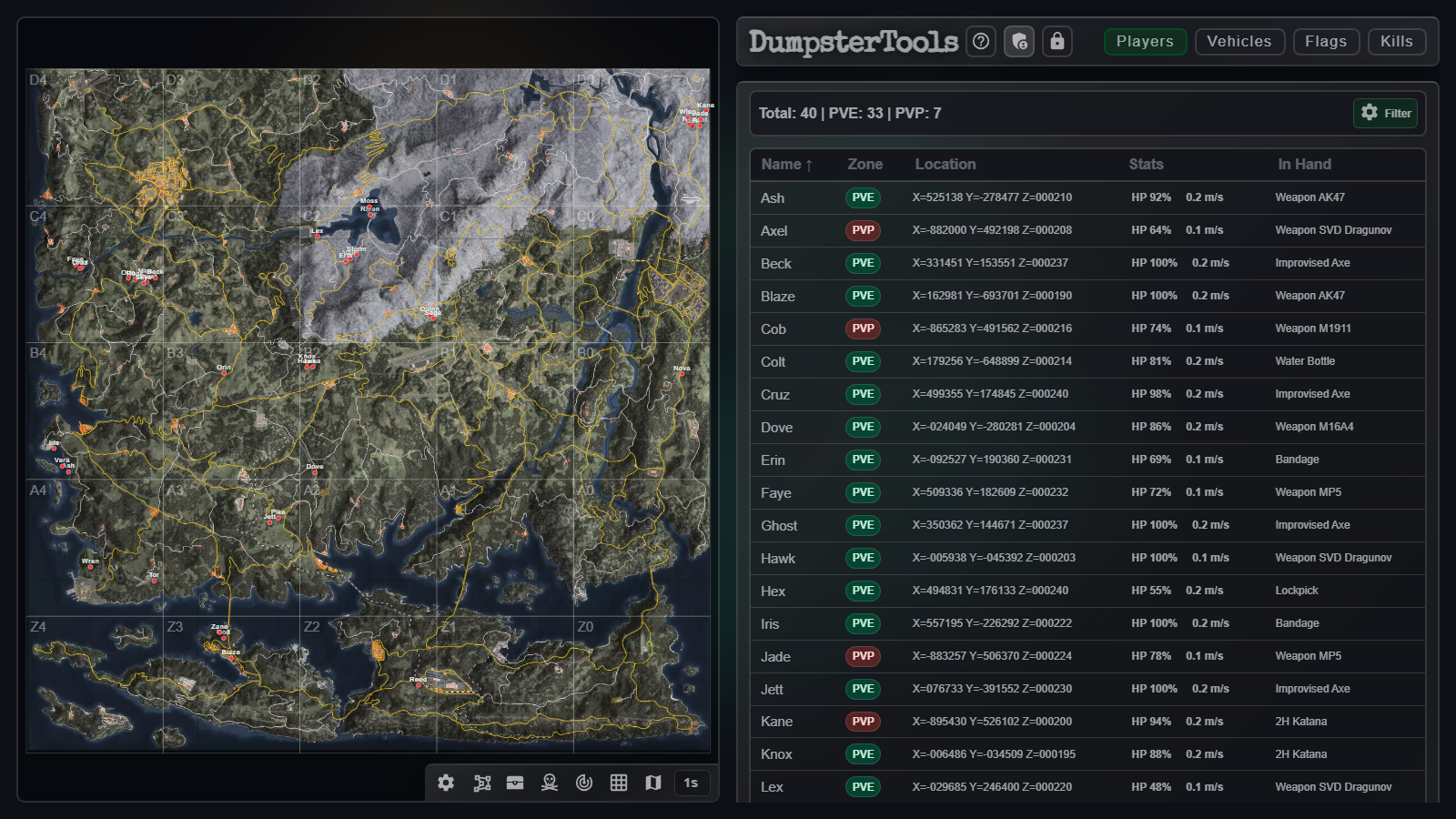
Player omniboxSame target picker on every tab — filter by zone, status and account.
Map dock
Tweak server configs from the same screen
Edit economy, notifications, raid times, loot spawners, and quests beside live overlays. Every save writes a timestamped backup first.
- Main and Test clear Each editor shows which profile you are writing to, and backs up the file before you save.
- Overlays with legends Zones, loot odds, encounter tiers, live NPCs and the sector grid — toggle what you need, hide the rest.
- Watch zones Draw a circle or rectangle, or drop a 100 m circle on a player. Arm it and the watcher runs your commands when someone enters.
- Live server pulse Players, game time, weather, entities and performance while the panel stays open.
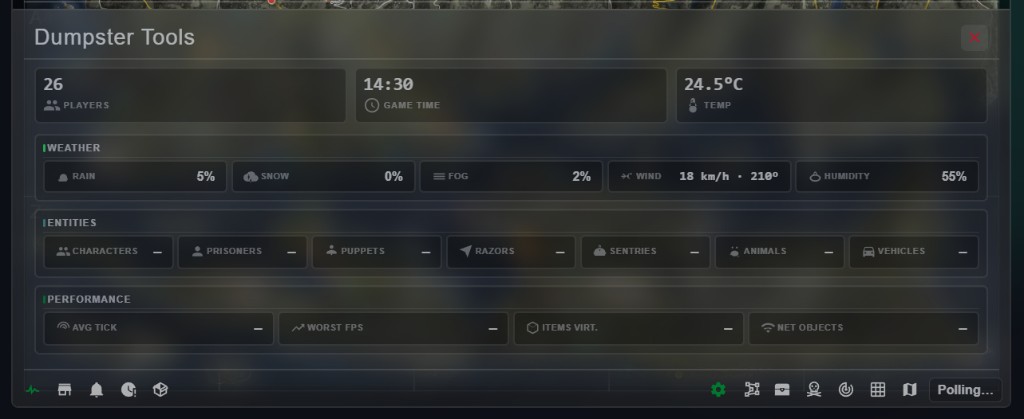 Live server stats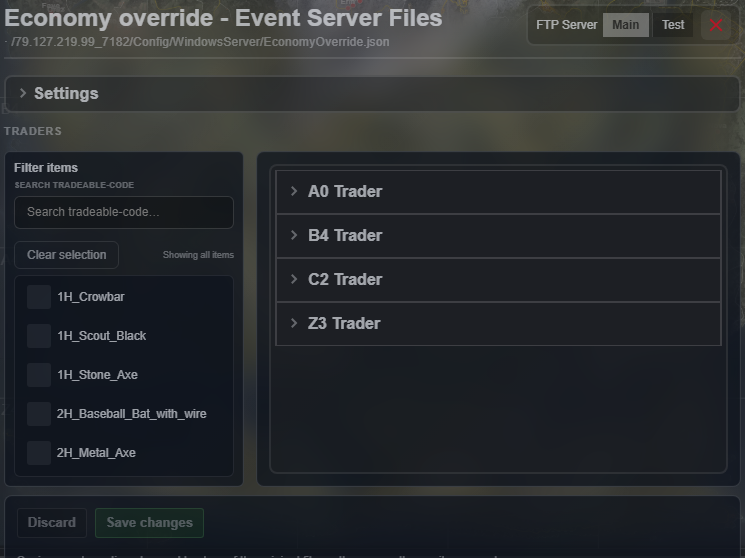
Economy OverrideEconomy editor with a backup written before every save. 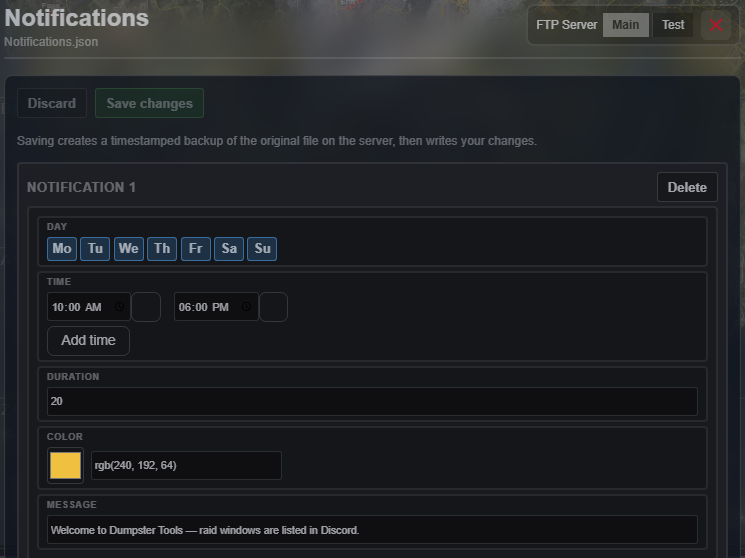
NotificationsRecurring messages by day, time, duration and colour. 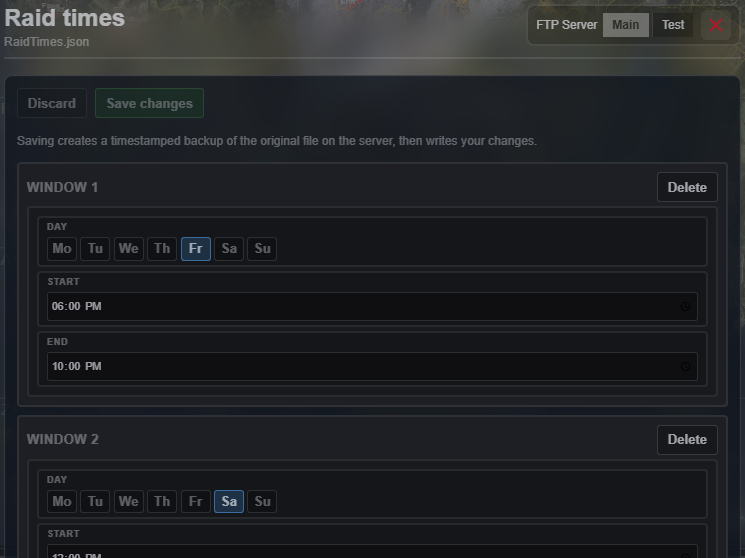
Raid timesPick the days and the window when raids open and close. 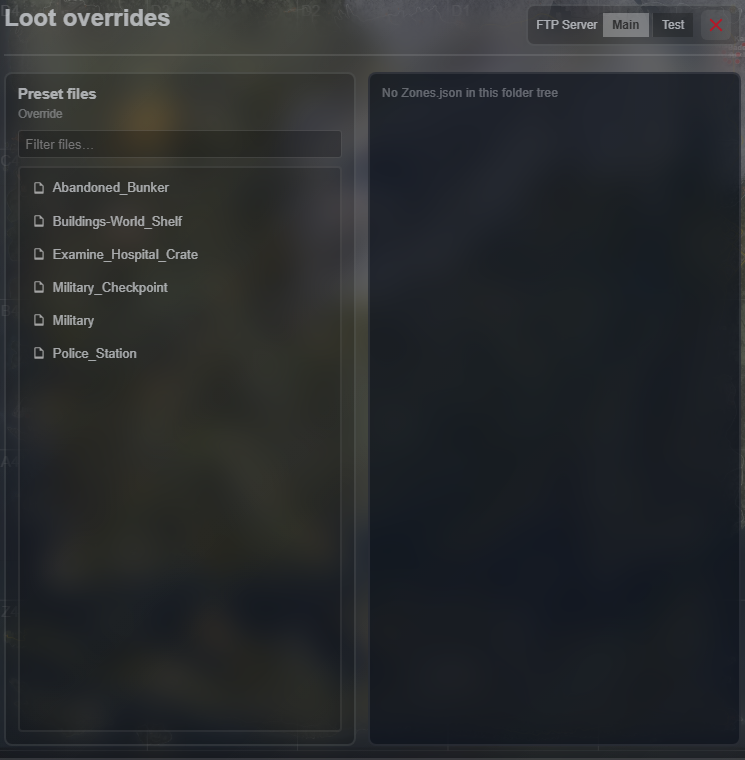
Loot spawner overridesTune Events, POIs, PVE and PvP presets by zone.
Overlays
Ask the map a different question
Layer zones, loot odds, encounter tiers, live NPCs, watch areas or the sector grid — then clear them when you want a clean view again.
Drag, scroll or use the arrows to compare.
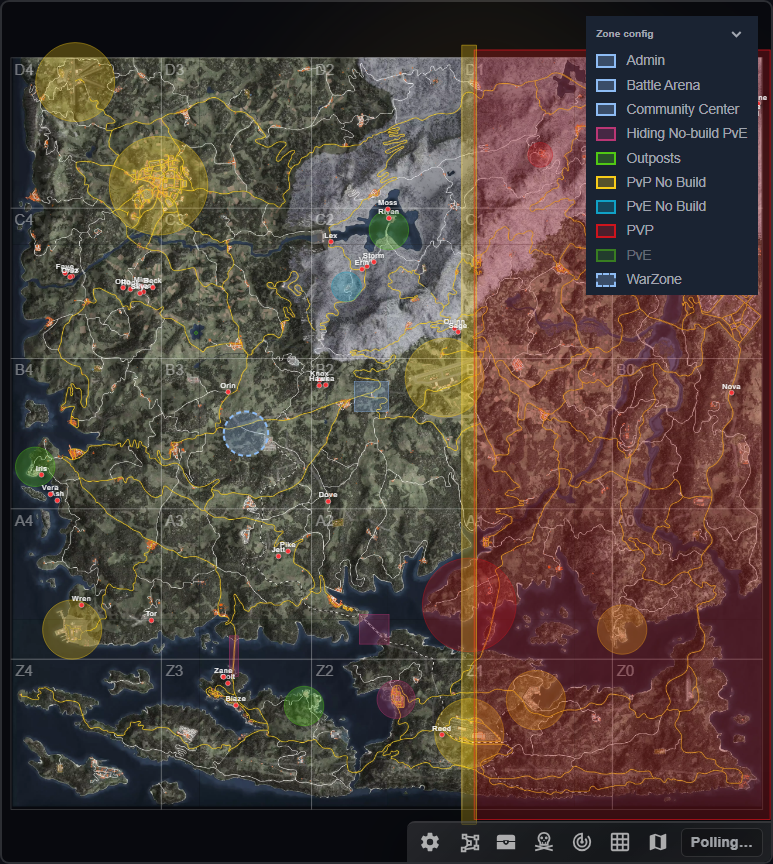
Zone config 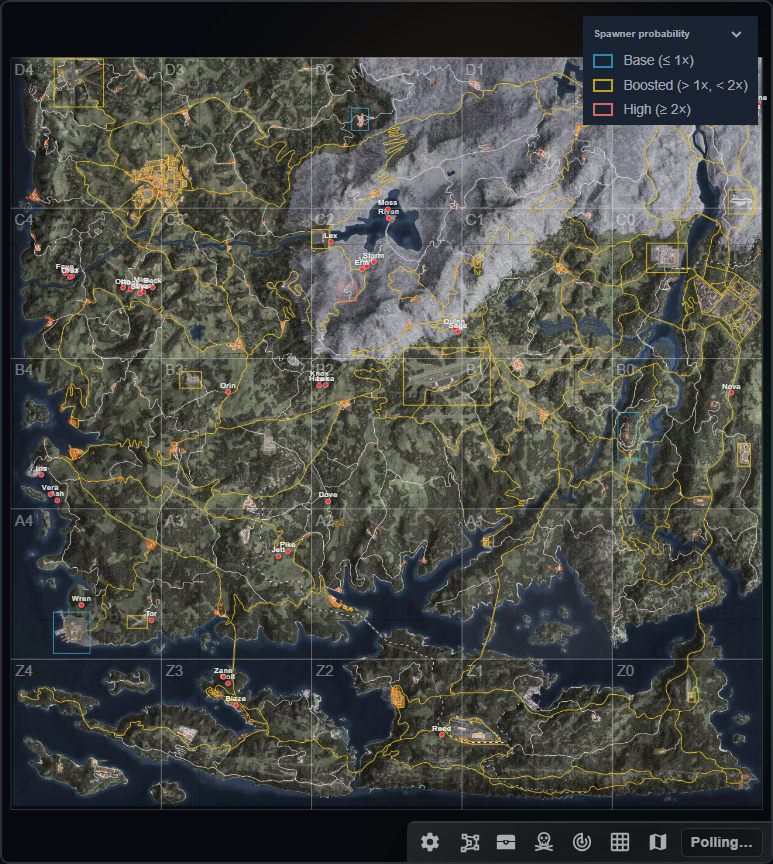
Loot zone modifiers 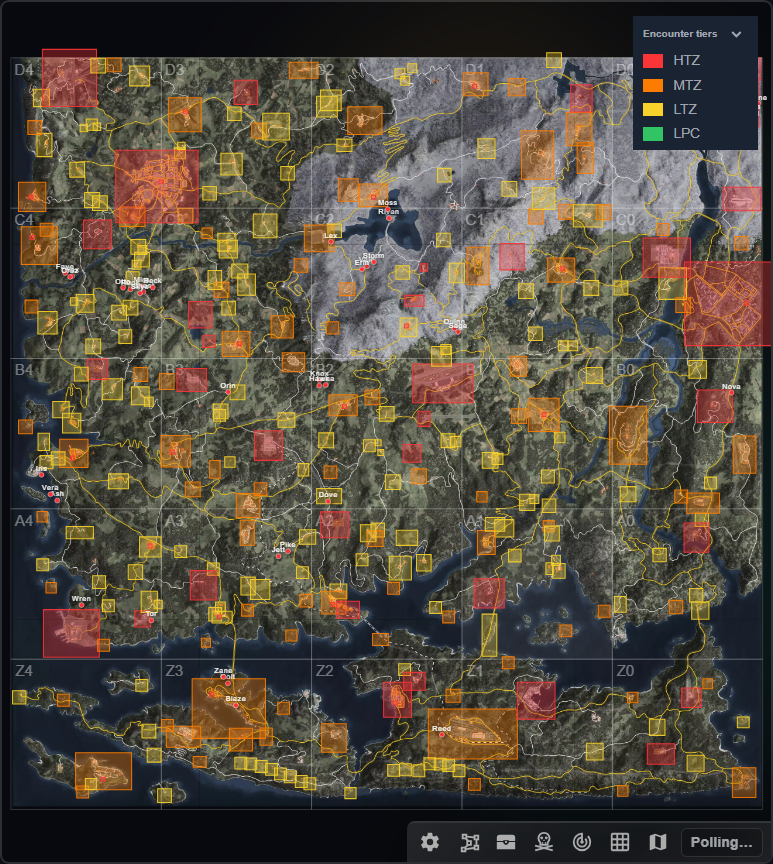
Encounter tiers 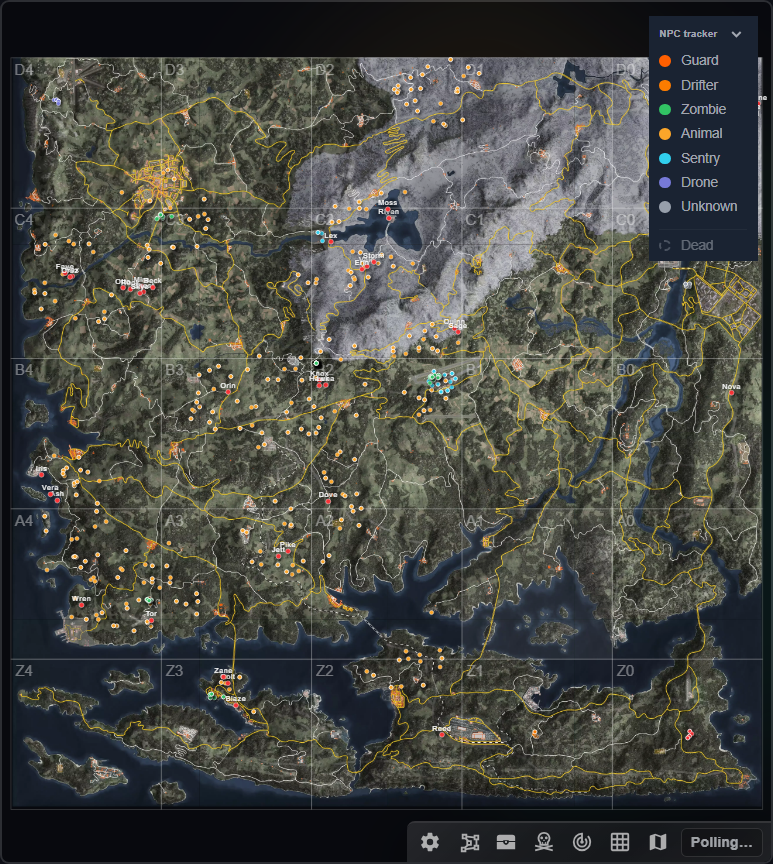
NPC tracker 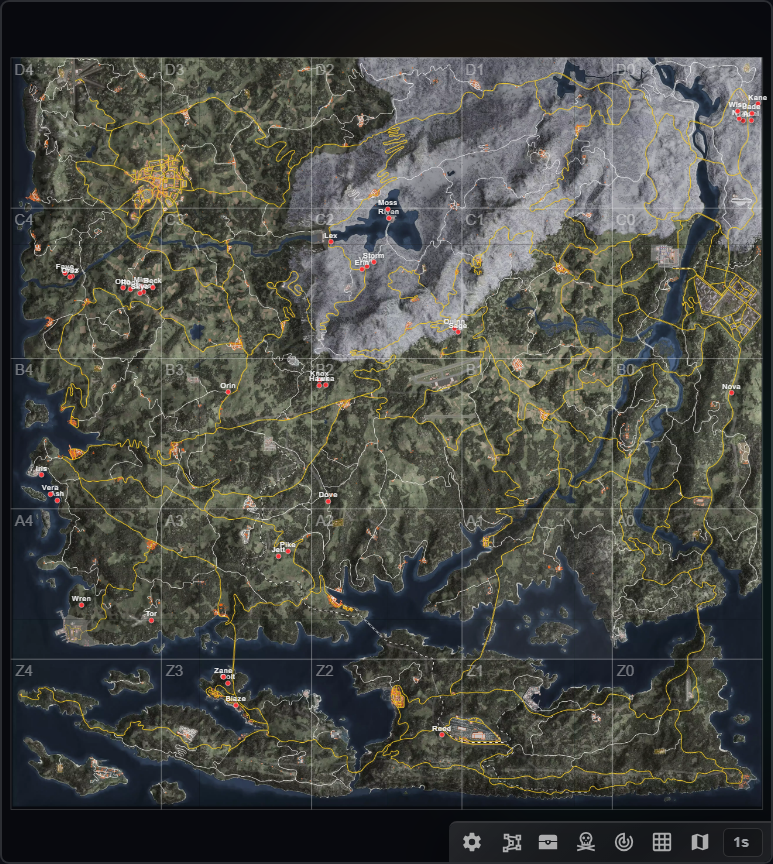
Sector grid 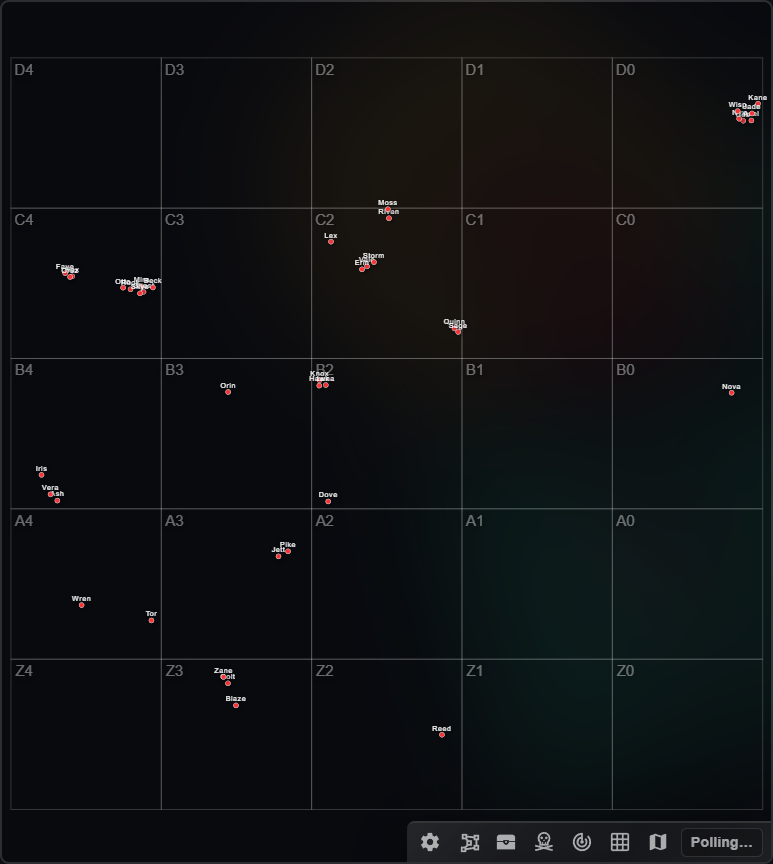
Terrain off
Before you hit send
“With great power comes great responsibility — so don’t f*ck it up.”
Teleports cannot be undone and raw commands have no preview. Dumpster Tools gives you the whole server — the guide covers the habits that keep it safe for everyone.
Read Tips and troubleshooting